
How to add lap times, speed and g-force to track day video
Export the session from the RaceBox app as a CSV (or VBO) file, open your onboard video in Telemetry Studio, add the session and click Auto Sync This Clip. Telemetry Studio switches to a motorsport layout: speed, lap timer, sector times, lap count, g-force, lean angle and a map of the circuit. Export in up to 4K.
It runs on Mac and Windows. The 14-day free trial covers everything below.
What you need
- Onboard video: GoPro, DJI, Insta360 or any camera.
- A session recorded on a RaceBox lap timer, exported as CSV or VBO. A GoPro with GPS on (Hero 5 Black and later, except the Hero 12) also gives you speed and the track map with no logger at all.
- Telemetry Studio for macOS or Windows (free 14-day trial).
01Export the session from your RaceBox
In the RaceBox app, open the session and share or export it. Choose a CSV export if you want lap and sector times on the video: the CSV includes the lap times RaceBox measured. Telemetry Studio reads all of RaceBox's CSV variants (the ones labelled for Telemetry Overlay, RaceRender, SeriousRacing and FastLap).
02Open your onboard video and add the session
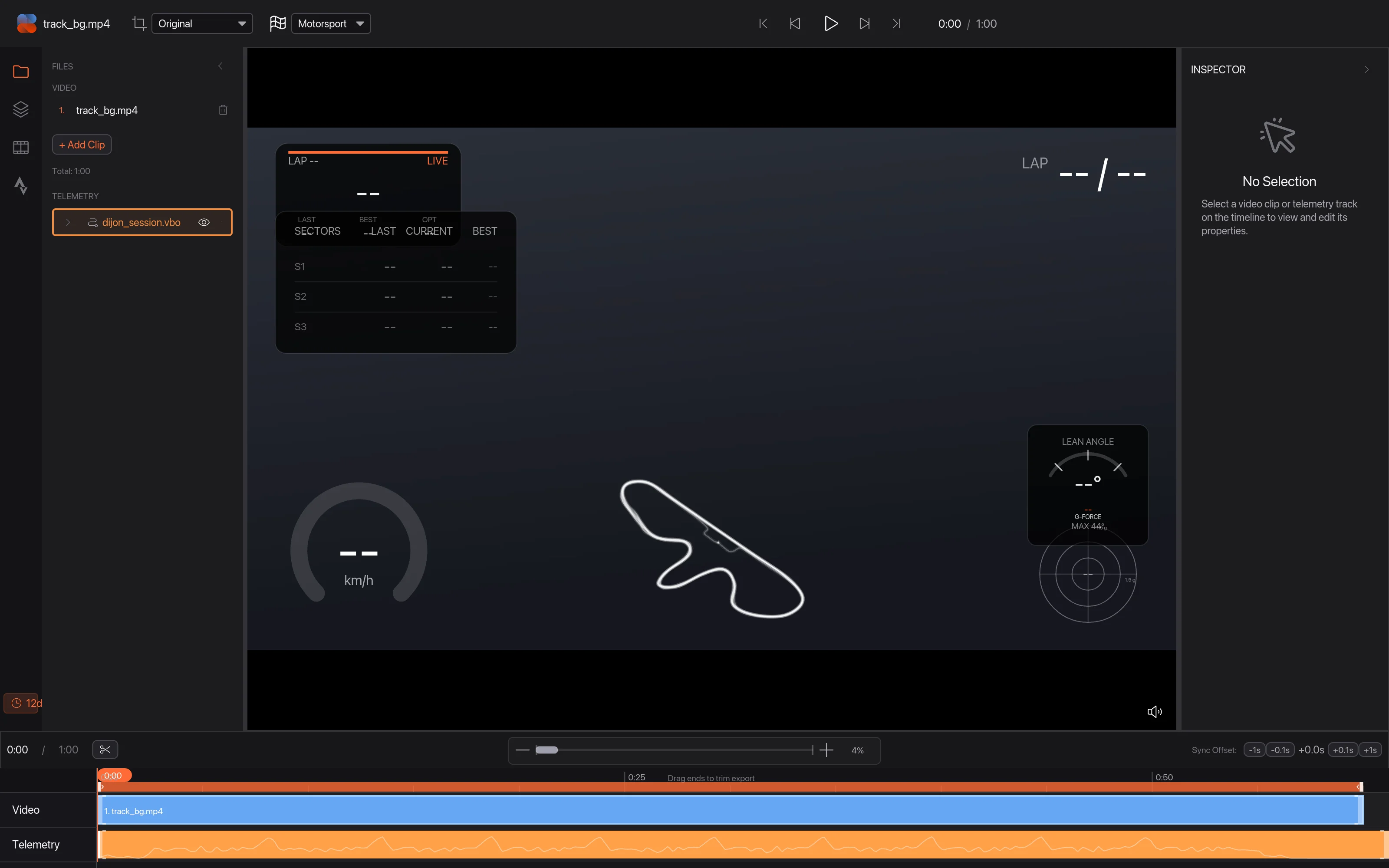
Open your onboard video, then click Add Telemetry and choose the session file, or drag it onto the timeline. Telemetry Studio sees it's a motorsport session, sets the sport to Motorsport and puts the motorsport gauges on the video.
03Auto Sync the clip
Right-click the clip on the timeline and choose Auto Sync This Clip. It matches the time the camera started recording to the session's GPS time. If the camera clock was off, use Sync to Map: click a point you recognise in the video (the start/finish line, a braking board), then the same point on the track map. Nudge by 0.1 seconds to get braking points exact.
04Pick the gauges
The motorsport overlays:
- Lap timer: current, last, best and optimal lap.
- Sector times with green and red deltas, lap times (best in green) and a lap counter.
- G-force friction circle and lean angle for bikes, with the session maximum.
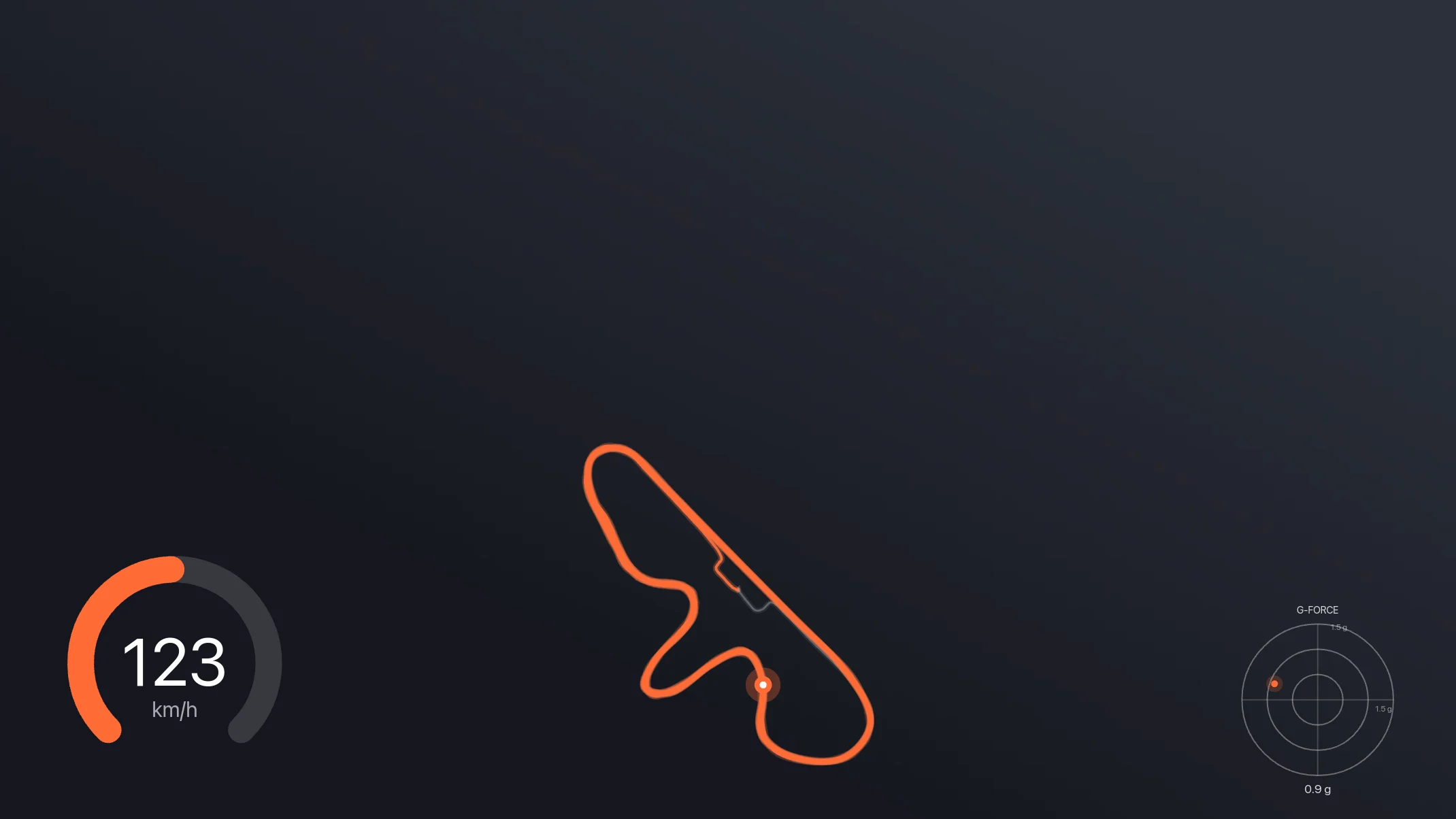
- Track map traced from your best lap, plus speed in km/h or mph.
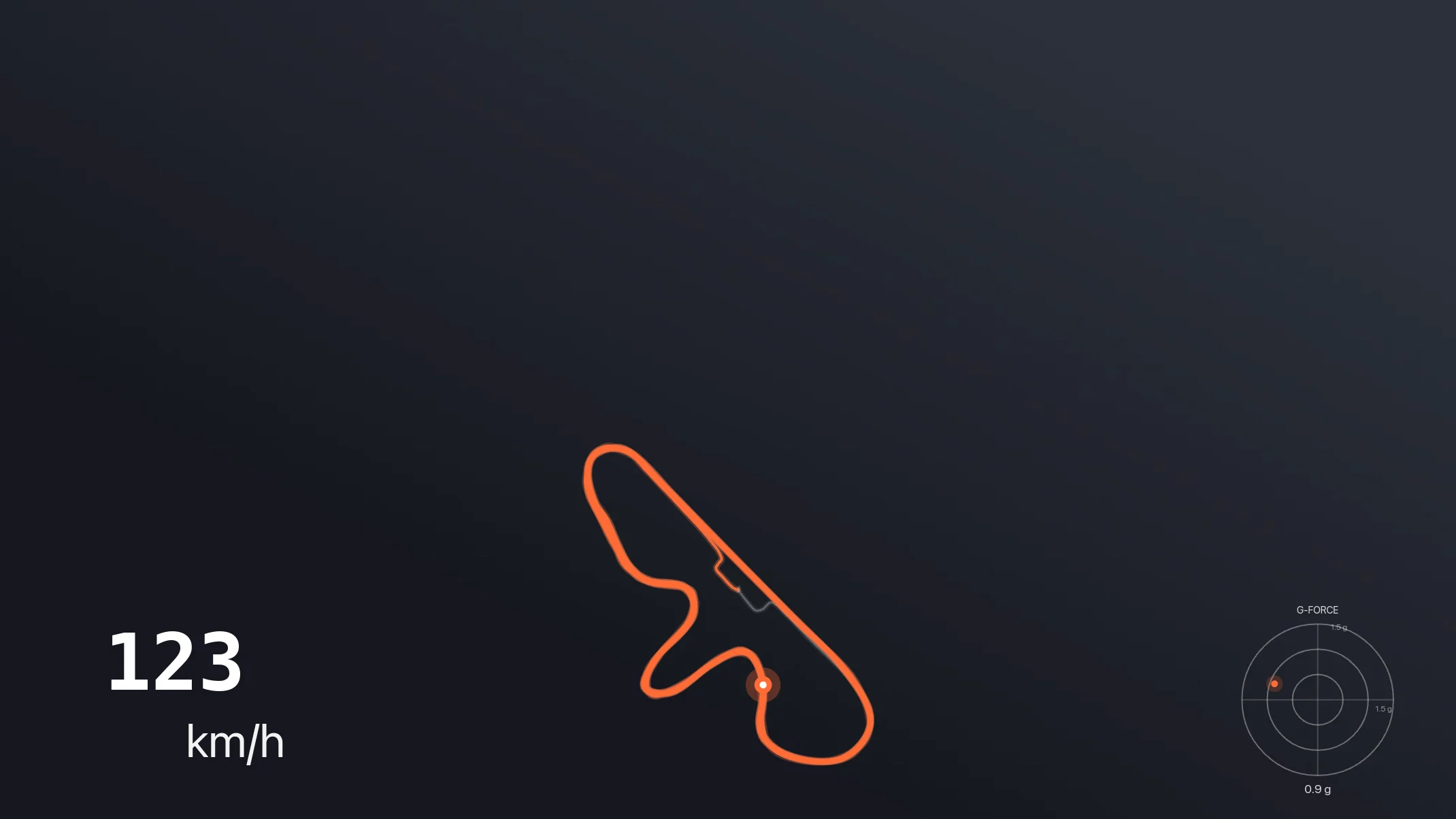
Turn each one on or off in the Overlays tab, drag them into place, and pick a theme for all of them at once:
05Export
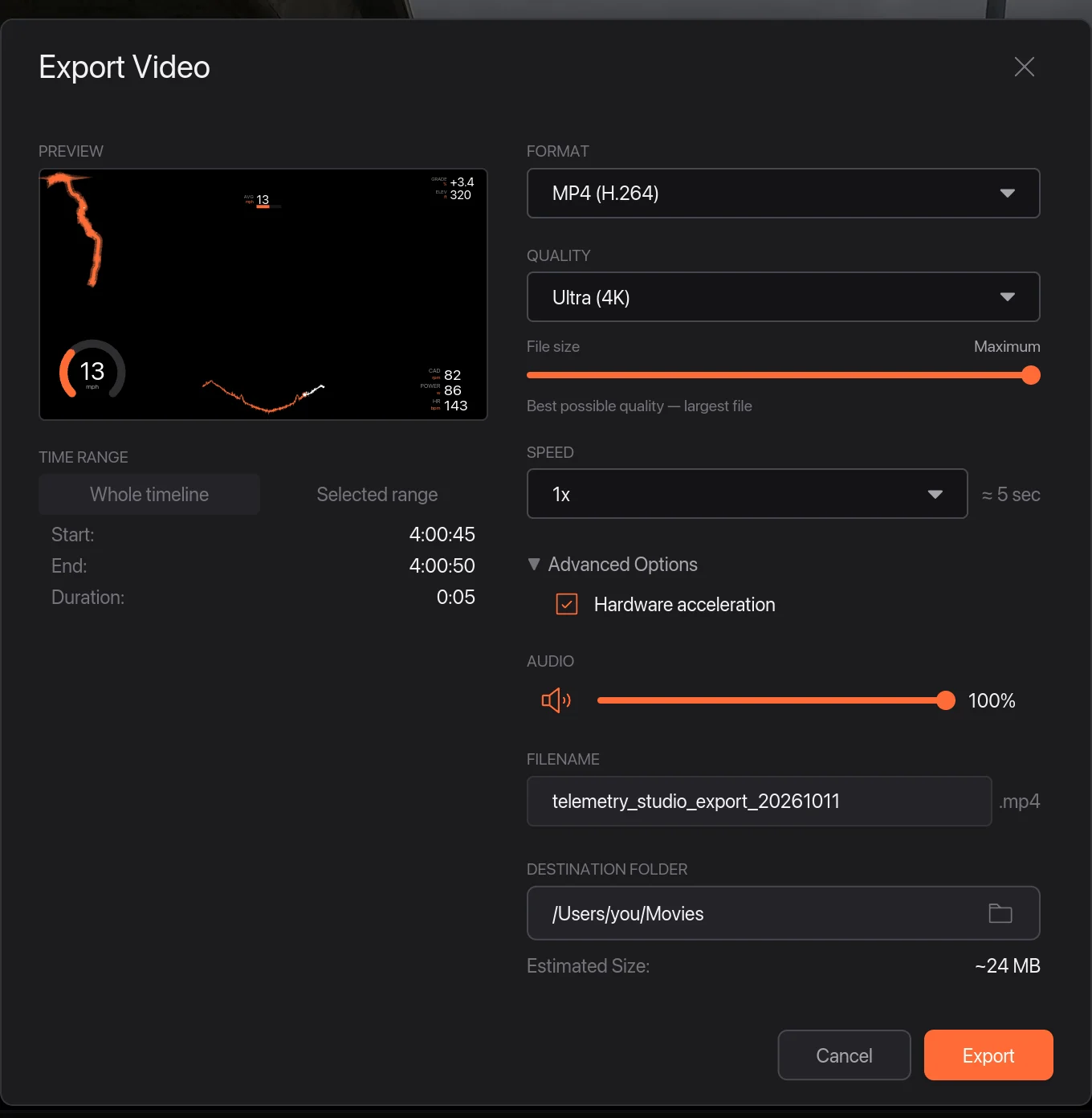
Choose File › Export Video…. MP4 (H.264 or H.265) up to 4K, 9:16 for Reels and Shorts, or only the gauges on a transparent background (ProRes 4444 or PNG frames) to lay over your edit.
Other options
- RaceRender: the long-standing motorsport tool, with multi-camera picture-in-picture and wide logger support. See Telemetry Studio vs RaceRender.
- RaceChrono Pro and Harry's LapTimer record laps on your phone and can export video with the overlay already on it.
- AiM Race Studio and VBOX Video do overlays for their own loggers and cameras.
- Telemetry Overlay reads AiM, MoTeC and OBD-II files among about 60 formats (comparison).
More guides
- Garmin VIRB Edit alternative: what to use in 2026
- Telemetry Studio vs Telemetry Overlay: an honest comparison
- DashWare alternative: data overlays for your video in 2026
- How to add Garmin data to GoPro video (speed, power, heart rate)
- How to add a telemetry overlay to Insta360 360 video
- How to add pace and heart rate to your running video
- Telemetry Studio vs RaceRender: an honest comparison
- How to add DJI flight data (altitude, distance, route) to drone video
- How to add speed and altitude to ski and snowboard video
- All guides and comparisons
- Frequently asked questions