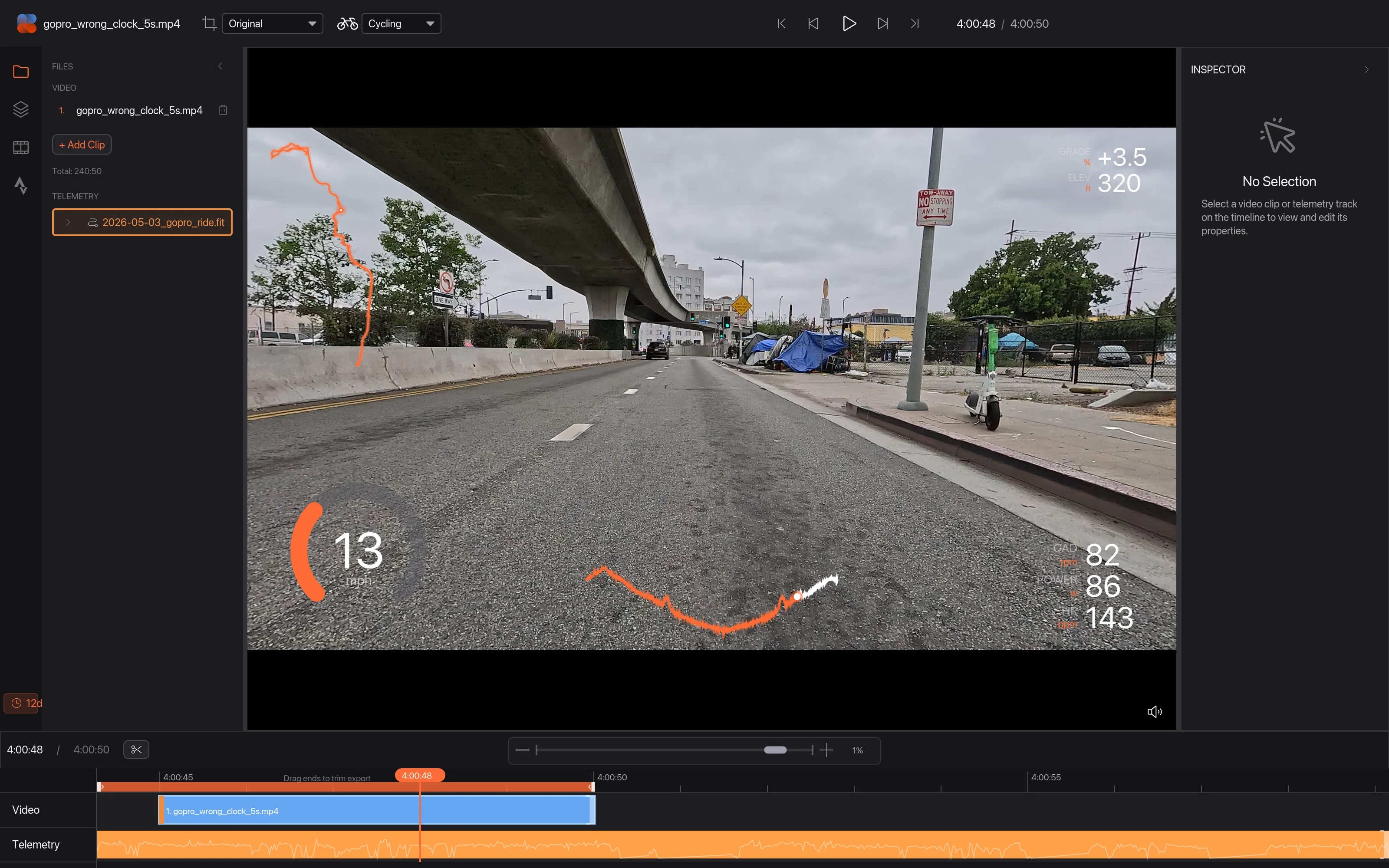
Line up your video and ride on the map
When your camera's clock was wrong, line up your video and your ride by a spot you can recognise in both.
Telemetry Studio normally lines up your video with your ride using the time your camera recorded it (see Add your ride from a FIT or GPX file). That only works if the camera's clock was right. Cameras often lose the time when the battery runs flat, and some editing apps change the recording time when they export. Sync to Map works without the clock: you show it one spot in the video and the same spot on your route.
01When Auto Sync can't line it up
If Auto Sync This Clip can't match the times, it tells you 1. It can also look like it worked while the numbers are clearly wrong, like full speed while you're stopped at a light. Either way, use Sync to Map.

02Open Sync to Map
Right-click your clip on the timeline and choose Sync to Map 1. You can also select the clip and click Sync to Map in the Inspector.
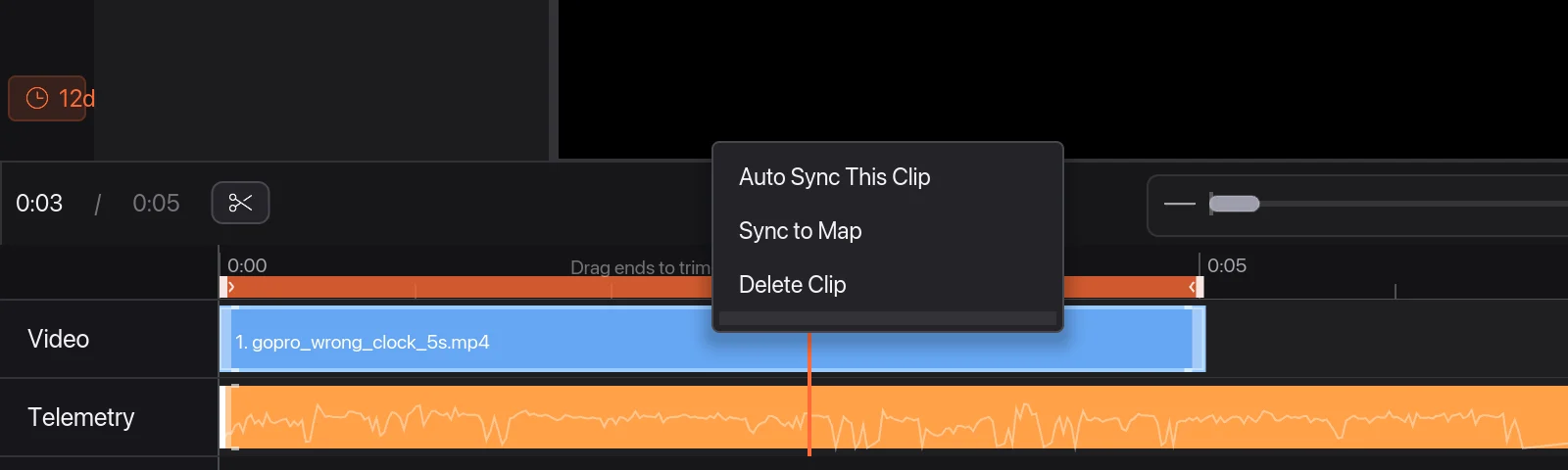
03Find a landmark in the video
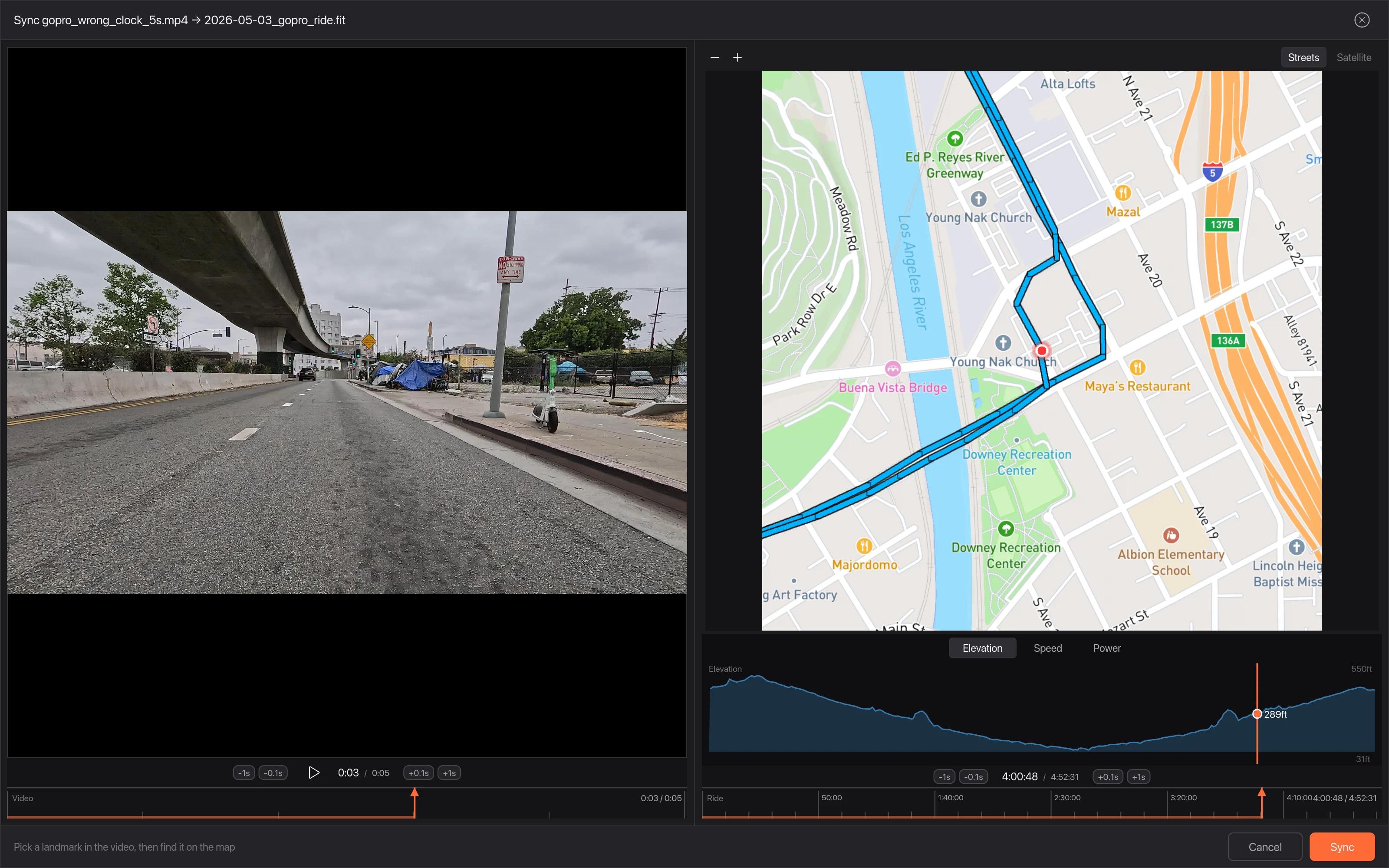
The video is on the left. Drag along the strip under it 1, or use the play and nudge buttons 2, until you reach a moment you can place on a map: a junction, a bridge, a building. Here it's the spot where the road passes under the freeway.
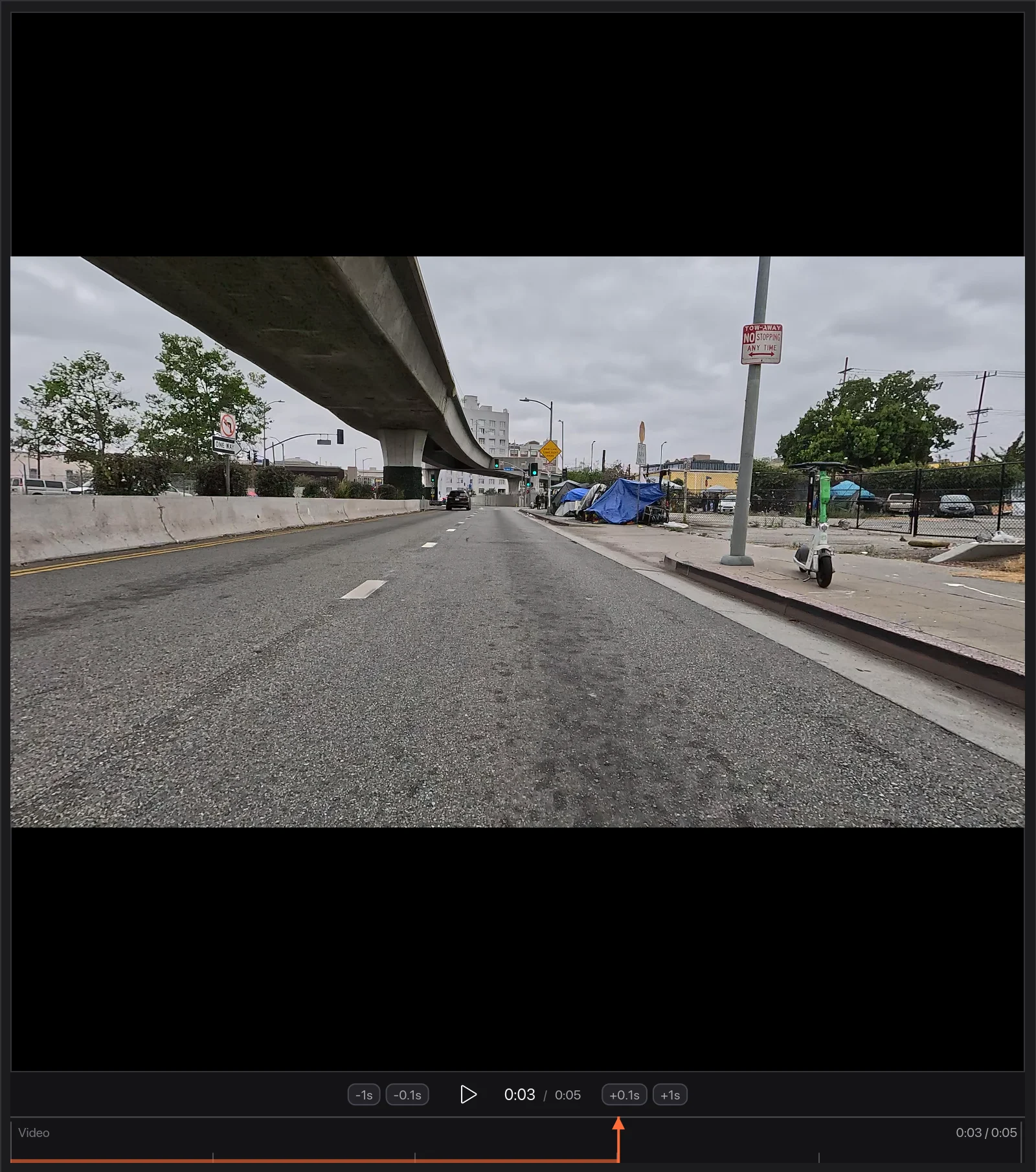
04Click the same spot on your route
Your route is drawn in blue on the map on the right. Find the landmark and click the route there. The map zooms in, and the pin 1 marks the point you picked. Drag the map to move around and use − and + to zoom. Click again to move the pin. The graph under the map shows where that point is in your ride.
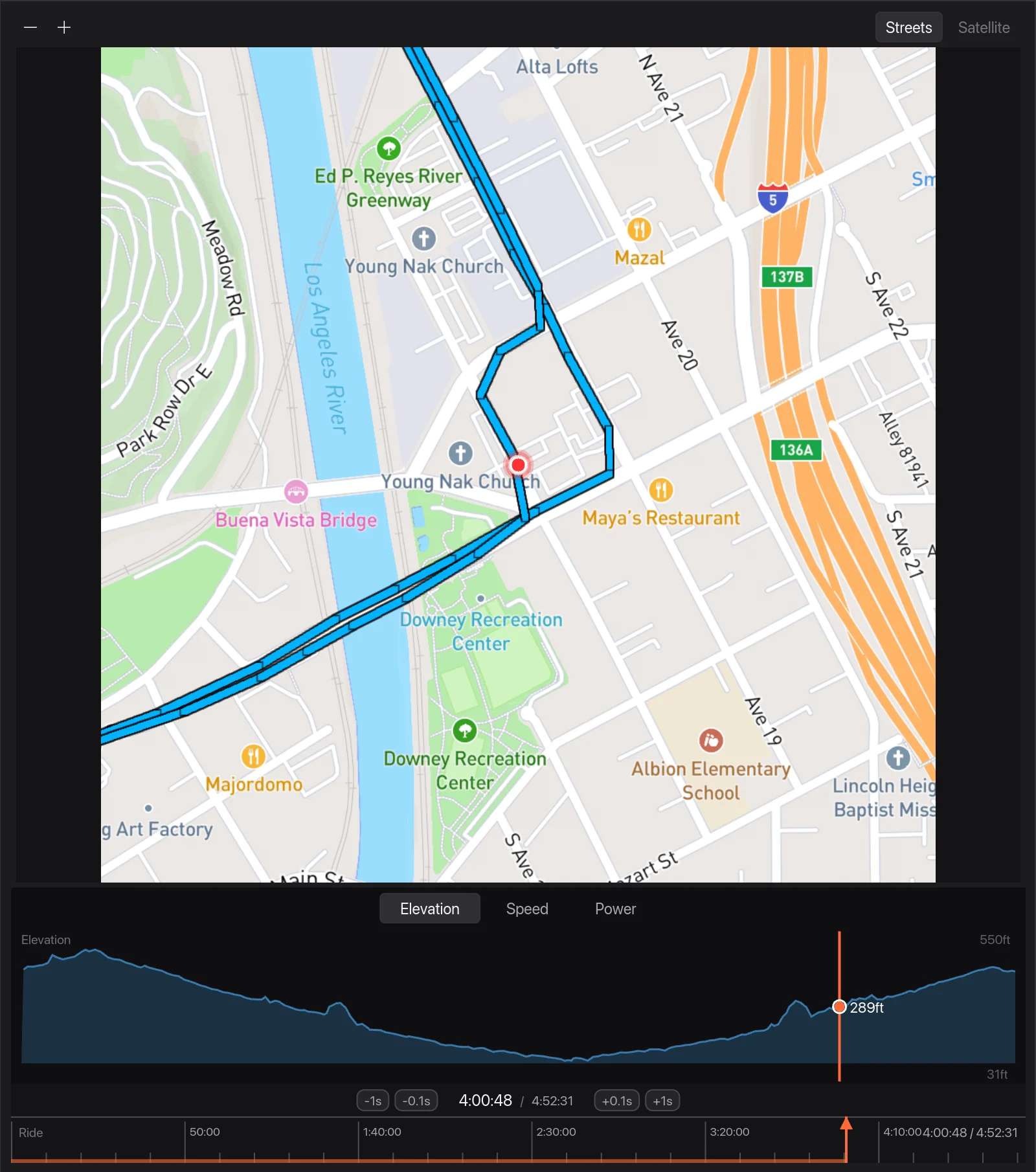
05Click Sync
With the landmark showing in the video and the pin on the same spot on the map, click Sync 1.
06Check it
Play the video. Your speed 1 and other data 2now match what's happening on screen. If they're a little early or late, nudge them with the Sync Offset buttons above the timeline, or press [ and ] to move 0.1 seconds at a time.