
How to add speed and altitude to ski and snowboard video
Record the day on a Garmin watch, the Slopes app or your GoPro's own GPS. Open your video in Telemetry Studio, add the FIT or GPX file, click Auto Sync This Clip, and set the sport to Other. Then add speed, altitude, vertical drop, the map and the time of day, and export. If your GoPro recorded GPS, you can skip the file entirely.
It runs on Mac and Windows, with a 14-day free trial.
01Record your runs
Any of these works. Use the one you already have:
| Source | What | How to get the data out |
|---|---|---|
| GoPro with GPS | Hero 5 Black and later (not the Hero 12) | Nothing to export: the GPS is inside the video. Speed and the map appear when you open it. |
| Garmin watch | Ski or snowboard activity | Garmin Connect on the web: open the activity, gear icon, Export Original (a .zip with the .fit inside). |
| Slopes app | iPhone or Android | Logbook, ••• menu, Export As, GPX. |
| Strava | Any recorded activity | Connect Strava in Telemetry Studio and pick the day. |
02Get the file
A FIT file from a watch has heart rate as well as speed and altitude. A GPX file from a phone app has the route, altitude and time, which is all you need for speed.
03Open your video and add the file
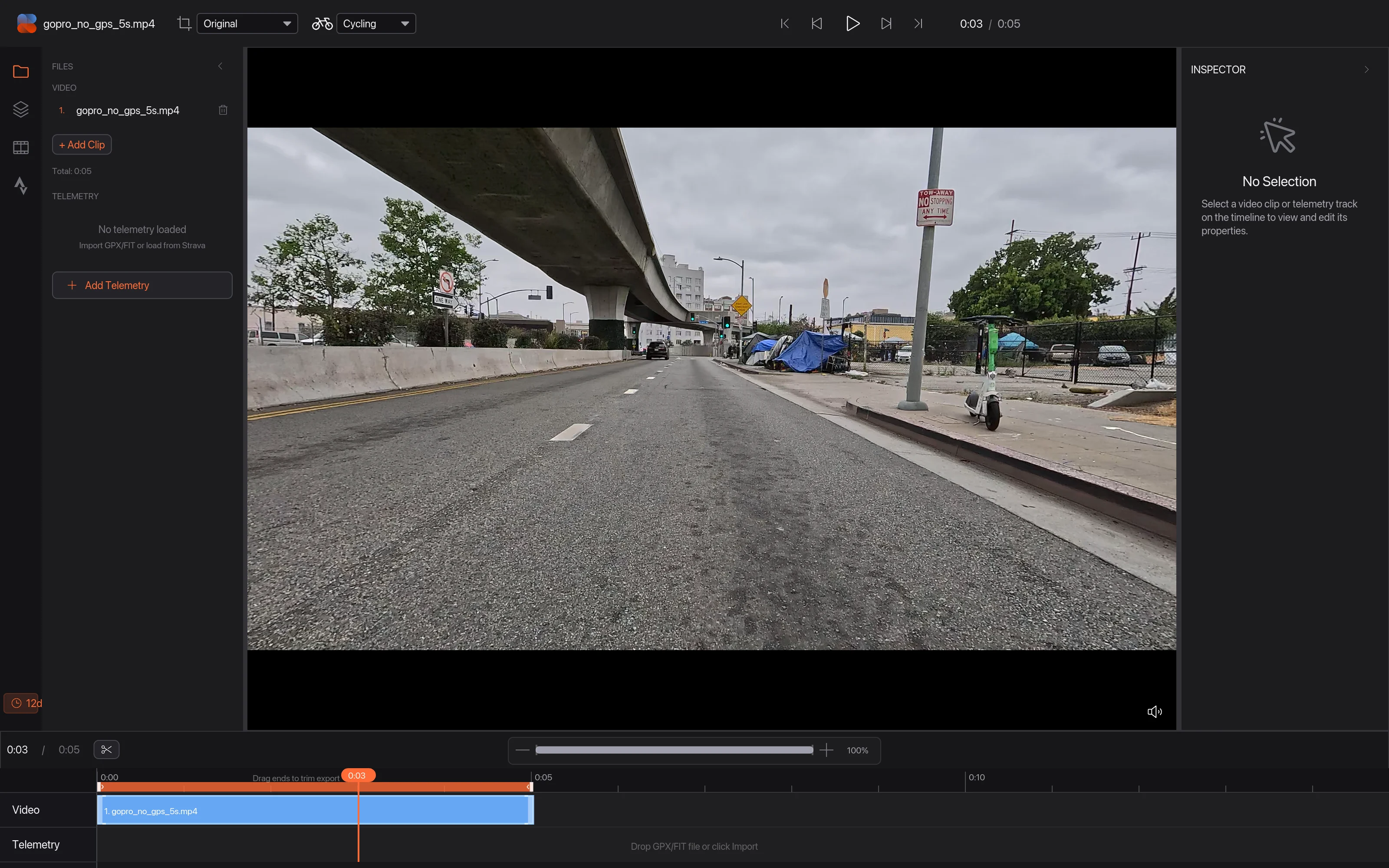
Open your video, then click Add Telemetry 1 and choose the file, or drag it onto the Telemetry row 2.
04Auto Sync and set the sport to Other
Right-click the clip on the timeline and choose Auto Sync This Clip 1. It uses the time the camera started recording to find that moment in your day.
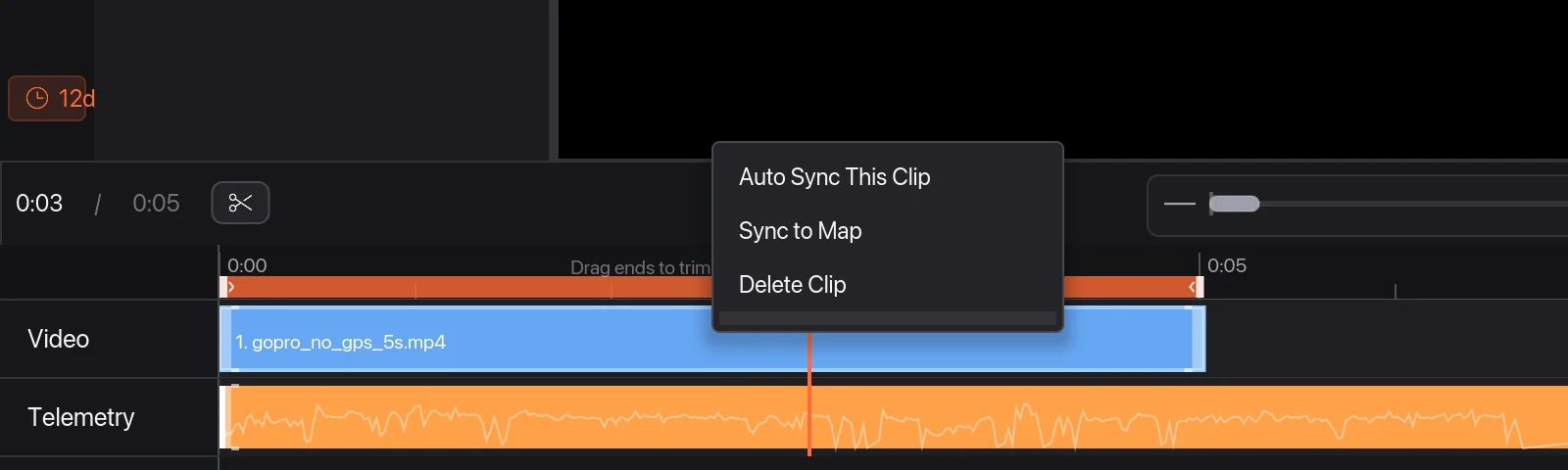
Telemetry Studio has no ski mode, so it may guess cycling from your speed. Set the sport in the top bar to Other: you get speed, altitude and the map without cycling-only overlays like power.
05Pick the overlays and export
Useful overlays for a ski or snowboard edit:
- Speed in km/h or mph, and a speed graph.
- Altitude and an elevation graph of the run.
- Elevation gain and loss: the loss is your vertical drop.
- Map of the run, the clock, and heart rate if your watch recorded it.
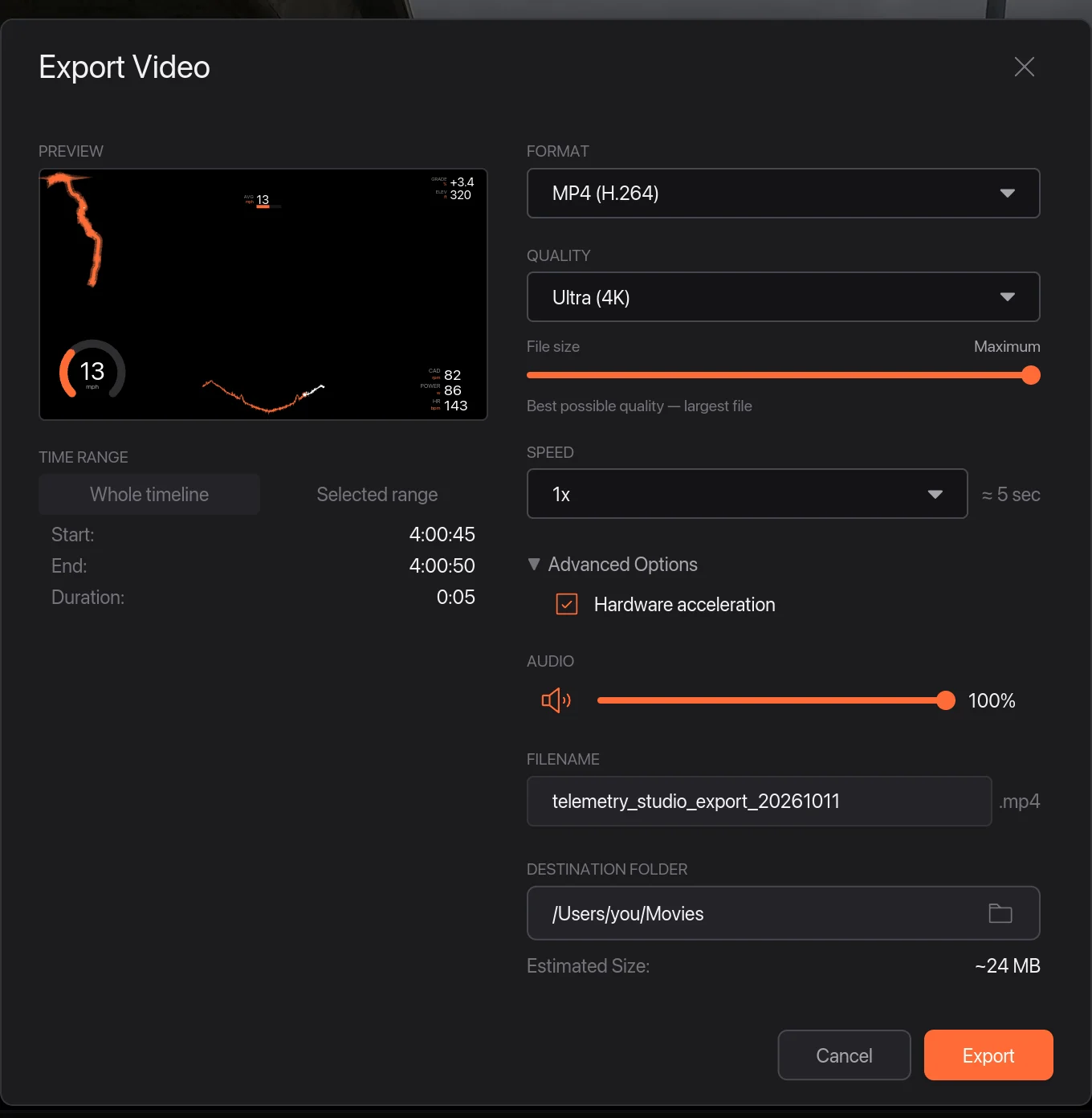
Then choose File › Export Video…: MP4 up to 4K, 9:16 for Reels and TikTok, or only the overlays on a transparent background for your editor.
If something looks wrong
- Impossible top speed: GPS glitches on a watch can spike the speed for a moment. Garmin users report it on ski activities too. Trim that part, or use the camera's GPS for that clip.
- Data a few seconds off: the camera's clock was wrong. Use Sync to Map: click a lift station or trail sign in the video, then the same spot on the map.
Related guides
Same idea for bikes: Garmin data on GoPro video. Filming on an Insta360? The 360 guide covers aiming the camera after the fact.
More guides
- Garmin VIRB Edit alternative: what to use in 2026
- Telemetry Studio vs Telemetry Overlay: an honest comparison
- DashWare alternative: data overlays for your video in 2026
- How to add Garmin data to GoPro video (speed, power, heart rate)
- How to add a telemetry overlay to Insta360 360 video
- How to add pace and heart rate to your running video
- How to add lap times, speed and g-force to track day video
- Telemetry Studio vs RaceRender: an honest comparison
- How to add DJI flight data (altitude, distance, route) to drone video
- All guides and comparisons
- Frequently asked questions