
Add your ride from a FIT or GPX file
Use the file from your bike computer when your camera doesn't record GPS, or when you want heart rate, power and cadence on your video.
Download the FIT or GPX file of your ride from Garmin Connect, Wahoo, or whichever app you record with. FIT files carry the most data: speed, location, elevation, plus heart rate, power and cadence if your sensors recorded them.
01Open your video
Open your video as usual (see the quick start). If the camera didn't record GPS, the Files tab shows No telemetry loaded.
02Add your ride file
Click Add Telemetry 1 and choose your file, or drag the file onto the Telemetry row of the timeline 2. FIT and GPX both work.
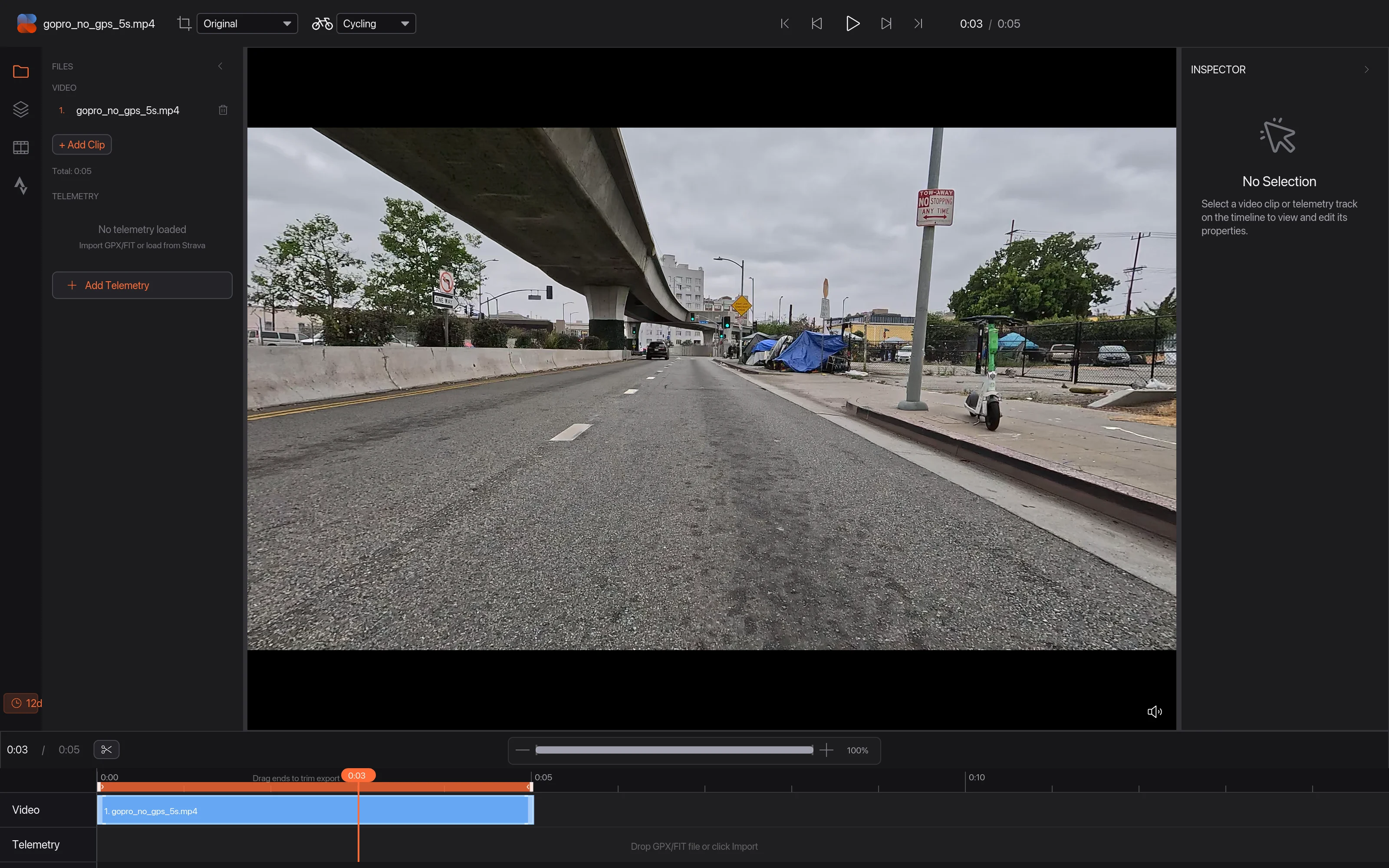
03Your ride is in, but not lined up yet
The file appears under Telemetry 1 and the whole ride shows on the timeline 3. At this point the start of your ride is pinned to the start of your video, so the overlays 2 show the first seconds of the ride, not the moment you filmed. The next step fixes that.
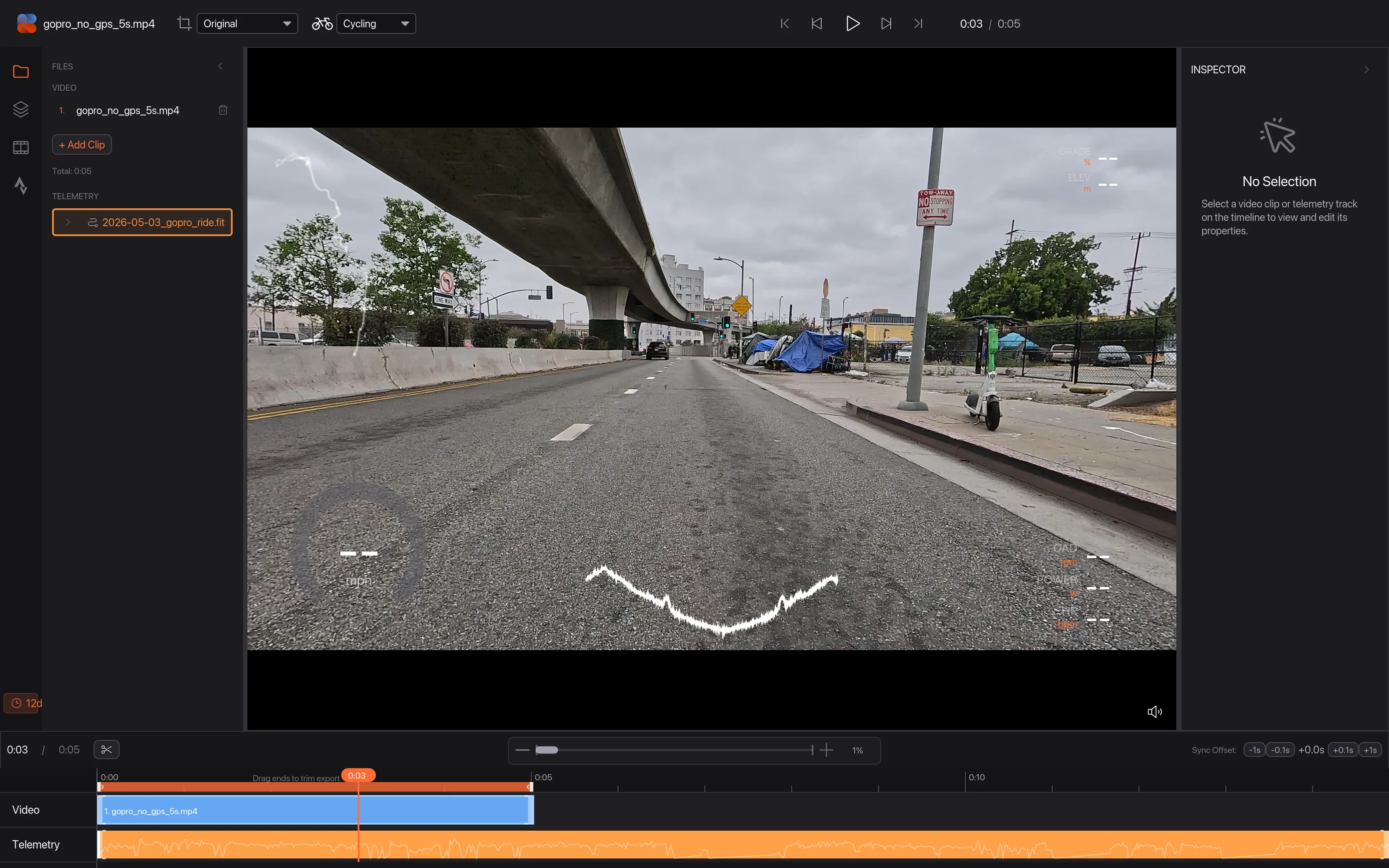
04Line it up automatically
Right-click your clip on the timeline and choose Auto Sync This Clip 1. Telemetry Studio uses the time your camera recorded the video to find the same moment in your ride.
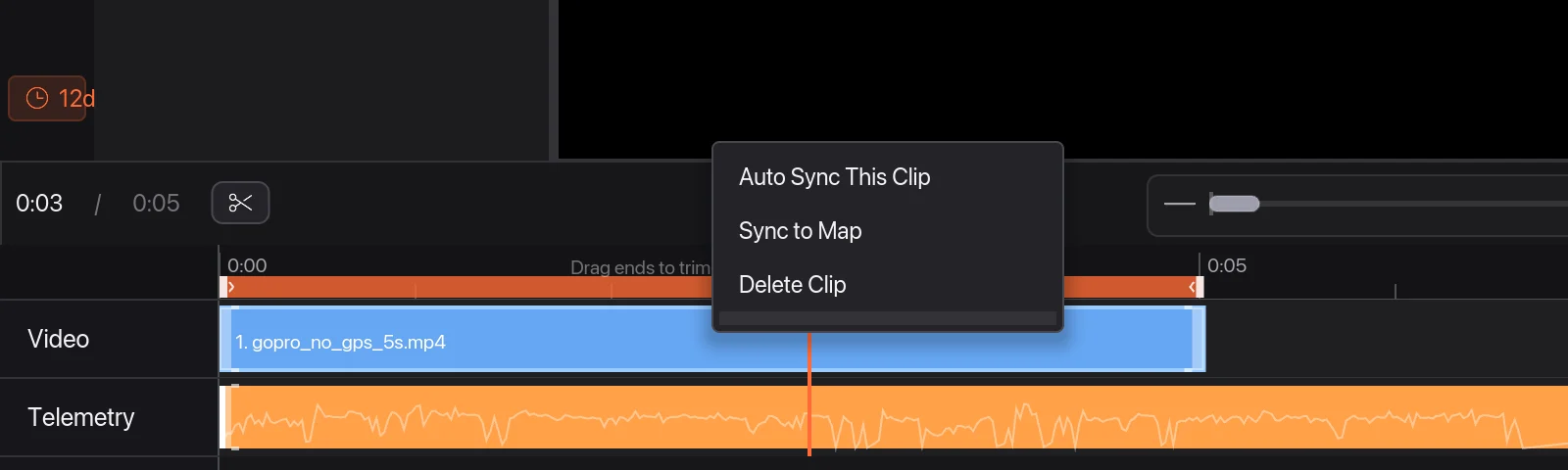
A message confirms it 1. Your clip moves to the point in the ride where it was filmed, and the timeline and playhead move with it, so the overlays now show your data from that moment.

05If the camera's clock was wrong: Sync to Map
Auto Sync relies on your camera's clock. If it was set wrong, or the video was edited or exported before you added it, line it up by a landmark instead.
Click your clip in the Files tab 1. The Inspector shows where the clip sits in your ride 2 and a Sync to Map button 3.
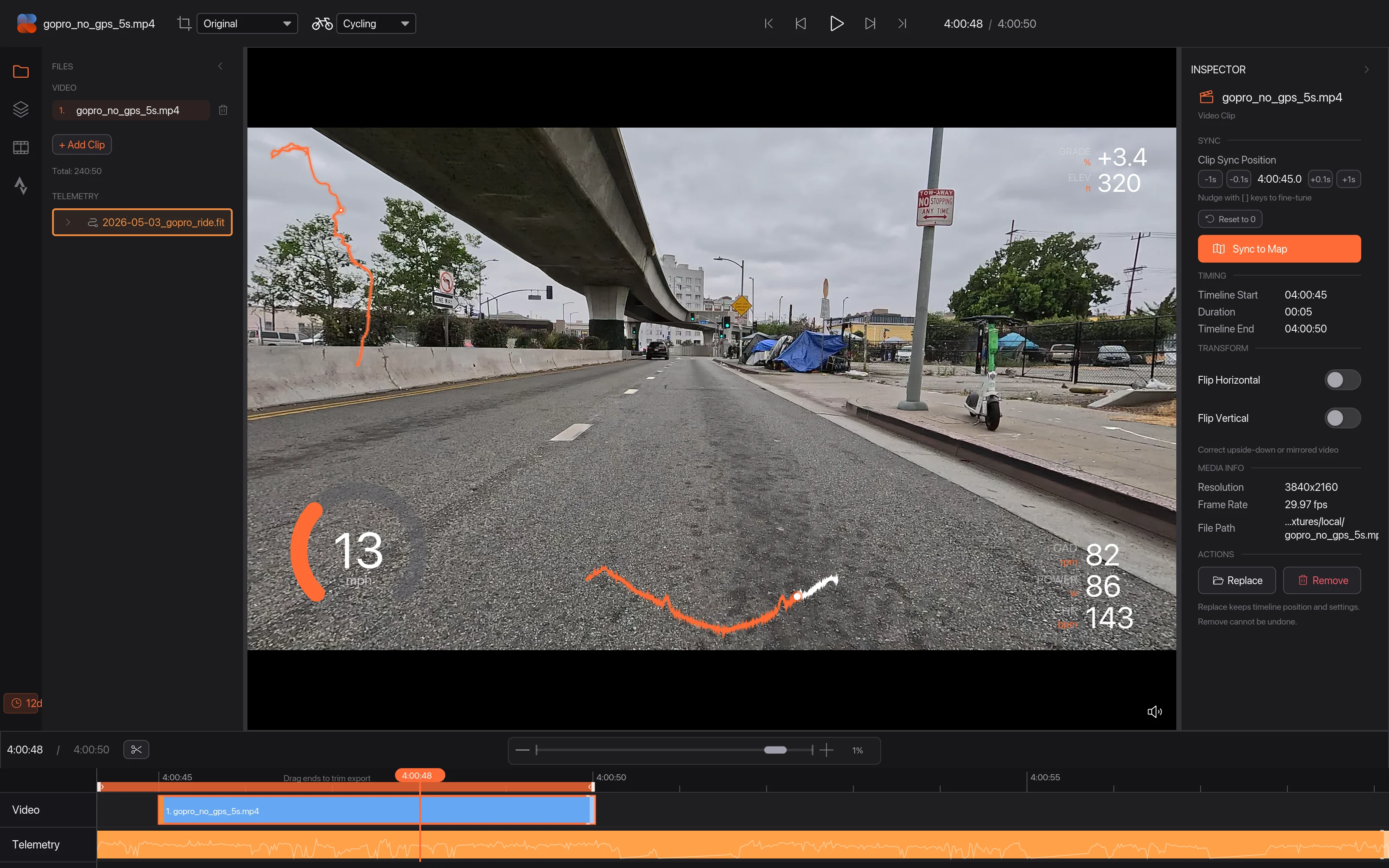
Click Sync to Map, find a landmark in the video, click the same spot on your route and click Sync. See Line up your video and ride on the map for a step-by-step walkthrough.
06Fine-tune
Play the video and watch a moment that's easy to check, like starting off from a stop. If the numbers are slightly early or late, nudge them with the −1s −0.1s +0.1s +1s buttons next to Sync Offset above the timeline, or press [ and ] to move 0.1 seconds at a time.